Amazingly Advanced Tools for the Average Programmer
If you design forms, reports, or queries in Microsoft Access,
you'll wonder how you ever lived without this full-orbed suite of tools written
in Access 2000.
Boost productivity. Simplify the complicated. Wrap your mind around what was formerly frustrating.
All these tools come complete with VBA source code.
Check out the screen prints below.
Main Menu Development Tool
The Microsoft Access switchboard menu is nice, but it has a couple disadvantages. First, when you go to a submenu, the parent menu becomes hidden. Second, it can be a little cumbersome to maintain. Now here's the slickest main menu that you've ever seen. Remember, this comes complete with code, so that you can modify it in any way.


Tables and Forms Development Tool
Microsoft Access makes it easy to build tables, and once you build your table, Microsoft Access has wizards to build a form from that table. But how would you like to create table and form together with a click of the button? More than that, how would you like a form wizard that goes beyond the basic form wizard, one that adds buttons of your choice, with functional code for each button, all in one step? These buttons, and their code, come from a template form. By modifying controls on your template form, you can affect the look and feel of controls on your final form. Your final form will not come out perfect, but remember, this comes with VBA code included, and you can tweak and tweak to your heart's content.
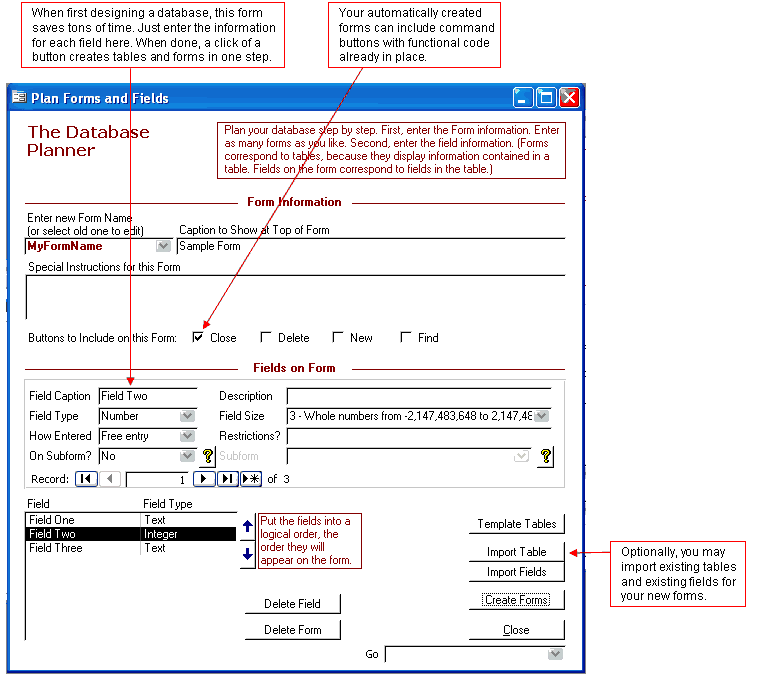
Once you plan your forms with the above tool, click Create Forms, and it brings you to this form where you have a few more options, such as label position.

Forms VBA Code Development Tool
Microsoft Access, when designing forms, allows you to edit the VBA code for form and control events. But you have to click in a couple different places to get to it, and once you get to it, it's in a different window. If all you're doing is verifying the code, rather than writing the code, that's a little cumbersome to click in different places and to switch windows back and forth. How would you like a tool that puts it all right in front of you? Then you can quickly verify code here and verify code there, and then if you see something that needs changing, you can easily go to the code module.

Query Development Tool
If your Microsoft Access database has fewer than a dozen queries, then maybe you can understand your queries and what they do. But if you have a confusing maze of queries, and if you're like me, you quickly forget which queries depend on which queries, and making any changes becomes a nightmare. Here's a tool to help.

Report Creator Development Tool
Making reports in Microsoft Access traditionally has been a step by step process. First, you decide what fields you want on the report. Second, you figure out from what tables those fields come. Third, you make a query that grabs those fields. Fourth, you make a report based on that query. Fifth, you equally space the controls on the report. Sixth, you add summary controls to the footer. And there's probably more steps in between. I think I forgot changing the look and feel of the report to match your other reports.
My preferable method to create a report is the point-and-click method. How is that possible? It works like this. First, open the form that has the fields you want. The form? Not the table or a query? Yes, the form. Then focus on the first field and press Ctrl-E. That grabs the field. Do likewise for the rest of the fields that you want in your report. Just focus on the field and press Ctrl-E. That's all. (Tip: ask your client to make a screen print of the form and to circle the desired fields on the form. Then you won't have to guess which fields your client wants on the report, and you'll know on which fields to press Ctrl-E.)
Next, use this development tool to create query and report with a click of a button. When done, you'll be pleased to see that your report has the look and feel of any template report you choose. Your fields will be equally spaced (if there's room). Your summary footer controls will be in place and positioned properly. Group headers and footers, as you choose, will be in place. And, if that's not enough, remember, this comes with the VBA source code so that you can automate and automate.

Report Designer Development Tool
When modifying an Access report, do you forget which group sections are visible or invisible? Do you forget which fields are left aligned or right aligned? To figure out what's what, you have to click on each section or control and view it's properties. If you're trying to figure out a lot of things, that's a lot of clicking. How would you like to view all these properties in one place? And how would you like to have the power to change these properties all in one place? Here's a tool to put it all at your fingertips.

Export Objects Development Tool
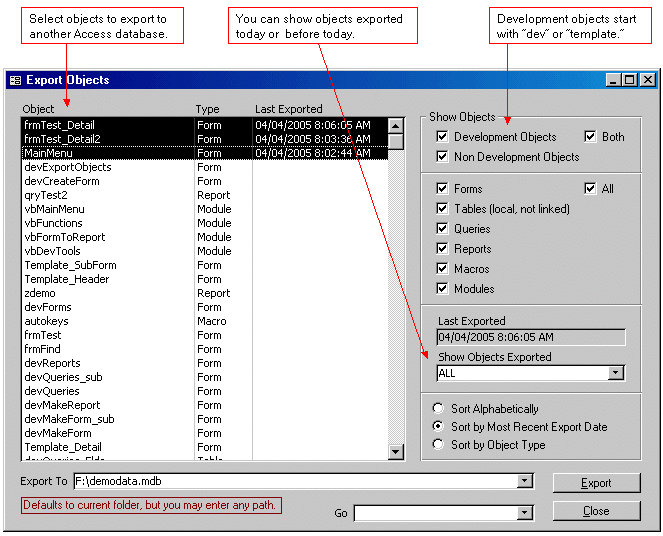
After using these development tools to efficiently create and modify your client's database, what do you do with these development objects? Do you give your client this database with all the development tools intact? No, and that's why we have an easy-to-use exporting tool that remembers when each object was last exported. Use this to export all non-development objects to the final destination Access database.
Autokeys Development Tool
Do you want more shortcuts? I've included an Autokeys macro that does the following:
- Ctrl-M opens the main menu. Suppose you've designed and debugged, and now you want to test it. Ctrl-M opens the main menu without having to go hunt for it.
- F10 opens the forms view in the database window. If you were last viewing tables or queries, you would have to click again to get to the forms. I hate extra clicks, don't you? F10 goes directly to forms view.
- Ctrl-D switches the active form to design view. (Of course, you could click to do the same thing, but this is a keyboard shortcut.)
- Ctrl-R runs the form you are designing.
- Ctrl-K turns echo off (in case you need it for some reason).
- Ctrl-L aligns a label to the left of the control (assuming the label-control has a parent-child connection).
- Ctrl-U aligns a label up to the top of the control (saves you a lot of dragging, resizing, and repositioning).
VBA Code Examples
Did I mention? All these development tools come with the VBA code behind them. That means you not only get the tools themselves, but it also means that you have sample code from which to learn. By looking at the code, you will see some ways to handle:
- Building SQL statements on the fly
- Building combobox control sources on the fly
- Using the MSysObjects table for faster access to database object names
Download Yours Right Now
Are you thinking this well-rounded array of development tools costs a hundred dollars or more? It probably should. But it it's a steal at $29 with a money-back guarantee. If your time is worth anything at all, you can't afford not to get this right now. Boost your productivity by automating mundane programming chores. Make your complicated database easier to understand. Download yours right now.
Development tools include:
- Menu Tool
- Form Creator
- Form Analyzer
- Query Analyzer
- Report Creater
- Report Analyzer
- Export Tool
- Complete VBA Code
About the Author
Allen Beechick has worked on many consulting and freelance jobs using Microsoft Access.
Do you need a productive consultant for your project?
Send your specs
and receive a free bid.
http://www.SoftForces.com - the best resume distribution service for IT professionals.

